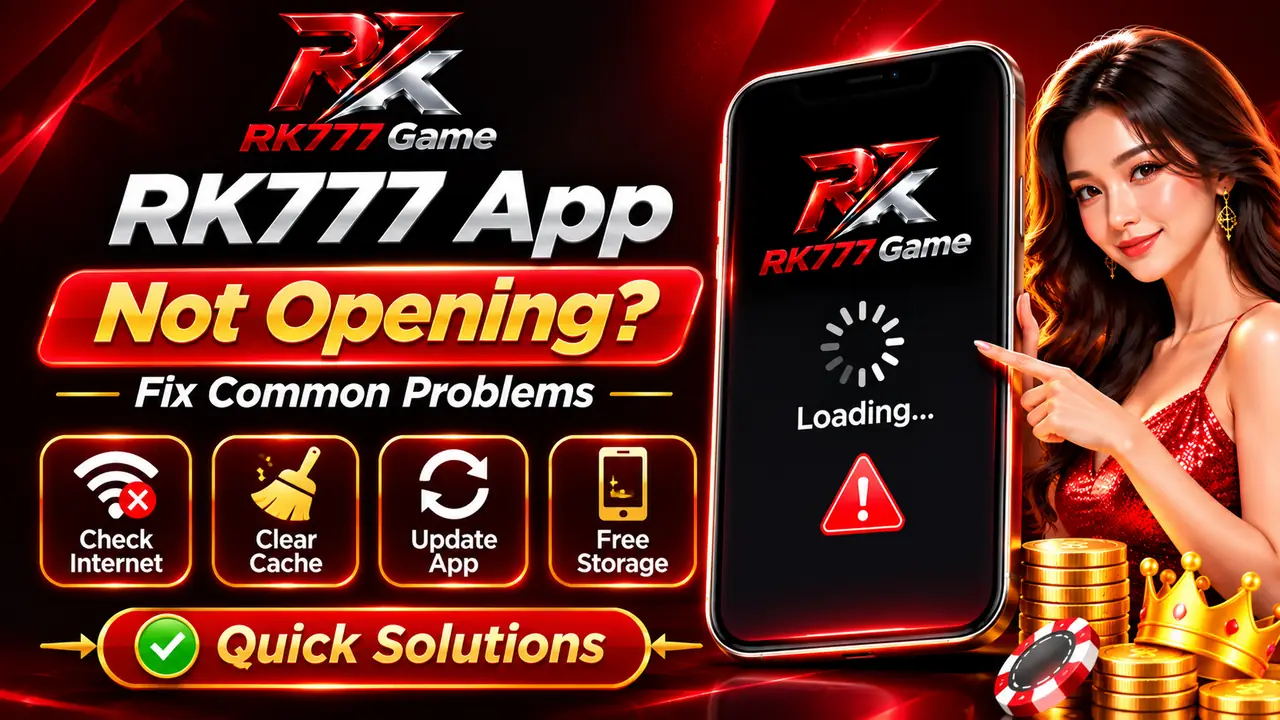
The RK777 app not opening, freezing on a loading screen or closing unexpectedly can be frustrating. The most useful fix depends on the symptom and your Android device.
This guide separates network errors, damaged cache, insufficient storage, black screens, app crashes and compatibility problems into short, practical steps.
Start with safe checks before reinstalling an app or changing security settings. If your actual issue is logging in or installing an APK, use the relevant dedicated guide instead.
Jump to the closest symptom to avoid unnecessary steps.
On this page
- Why Is the RK777 App Not Opening?
- Quick Fixes to Try First
- Fix Internet and Network Connection Problems
- Clear RK777 App Cache Safely
- RK777 App Showing a Black or Blank Screen
- RK777 App Crashing or Closing Automatically
- Check Storage and Device Resources
- Update the RK777 App Without Losing Access
- Android Compatibility and System Updates
- Review Permissions and Android Security Messages
- Could the RK777 Server Be Unavailable?
- What to Check Before Reinstalling RK777
- When Should You Contact Support?
- Frequently Asked Questions
- Final Troubleshooting Checklist
Why Is the RK777 App Not Opening?
A screen that will not load can have several causes. The first step is to identify what actually happens when you open the app.
Check internet access, server status and outdated app files.
Restart the phone, free memory and inspect app updates.
Restart, update Android components and clear temporary cache.
Switch networks and confirm other websites open normally.
These symptoms are not proof of a permanent account problem. A working login and a successfully launched app are two separate things.
Quick Fixes to Try First
Start with the lowest-risk checks. Most of these steps do not change account information.
- Close and reopen RK777.Remove the app from recent apps, then launch it again.
- Test your internet.Open an ordinary website; try switching from Wi-Fi to mobile data or back.
- Restart your phone.A restart can clear stuck processes and temporary memory issues.
- Check storage.Keep enough free space for the app to operate and update.
- Check for an authentic update.Use a source you trust, not a random APK forwarded in a chat.
Fix Internet and Network Connection Problems
RK777 may appear stuck if your phone has a connection but cannot reach the service it needs.
- Check whether other websites and apps load normally.
- Switch between Wi-Fi and mobile data.
- Disable airplane mode if it is enabled.
- Restart your router if other devices are also affected.
- Check whether a VPN, private DNS or restrictive firewall is interfering with ordinary access.
- Verify that the phone date and time are set automatically.
A successful browser connection does not guarantee that the app’s servers are operating. If multiple users report an outage, repeated reinstallations may not solve it.
Clear RK777 App Cache Safely
Damaged or outdated temporary files can sometimes cause a blank screen, slow startup or an app crash.
- Open Android Settings.Find Apps, App Management or the equivalent menu.
- Select the RK777 app.Open Storage & cache, if available.
- Tap Clear cache.Do not choose Clear storage / Clear data unless you understand its effects.
- Reopen RK777.Check whether the loading issue has improved.
RK777 App Showing a Black or Blank Screen
A black screen can be caused by a stalled app process, a rendering problem or temporary system resource limits.
Use Android Settings → Apps → RK777 → Force stop, then reopen.
Give the device a fresh start before changing settings.
Check Android system updates and relevant WebView/browser updates.
Close unused heavy apps and free storage if nearly full.
If the problem began immediately after an app update, note the version and error details before contacting the provider through a verified support channel.
RK777 App Crashing or Closing Automatically
When the application opens briefly and then closes, focus on device resources and possible software conflicts.
- Restart your phone and try again.
- Close other resource-intensive applications.
- Check free device storage.
- Install compatible Android system updates.
- Clear only the app cache first.
- Review whether the issue began after an app update.
Repeated crashing on just one phone may indicate device-specific compatibility. The same failure on multiple devices can indicate a wider service or build issue.
Check Storage and Device Resources
Limited free storage may affect app updates, temporary files and general Android performance.
Delete unused downloads or move personal media to trusted storage.
Reduce background tasks when the phone is under heavy load.
Avoid deleting unknown Android system folders or using untrusted “one-tap cleaner” utilities.
Update the RK777 App Without Losing Access
An outdated build can fail to load if it no longer communicates properly with the platform, but a newer build is not always the cause or cure.
- Check your current version.Use Android Settings → Apps, where version information is often visible.
- Verify the download source.Read the RK777 latest-version guide and validate the source before installing anything.
- Keep your account details available.Do not uninstall until you can sign in again or recover access.
- Follow Android's on-screen prompts.Do not bypass a malware or integrity warning simply to proceed.
For download and file-installation issues, see the separate RK777 APK not installing guide.
Android Compatibility and System Updates
Android version, processor architecture, available resources and app build can affect compatibility.
- Check your Android version in Settings → About phone.
- Look for genuine system updates provided for your device.
- Check whether the publisher states a minimum supported Android version.
- Avoid assuming a particular version or device is supported without confirmation.
If an APK shows an installation error before launch, read our RK777 APK information page rather than repeatedly changing phone security settings.
Review Permissions and Android Security Messages
Not every app failure is a permission problem. Grant only permissions that are necessary and clearly explained.
- Review permissions under Android Settings → Apps → RK777 → Permissions.
- Do not grant unnecessary access to contacts, messages or sensitive files.
- Pay attention to Android and Play Protect safety warnings.
- If an APK is blocked as potentially harmful, stop and verify its authenticity rather than overriding the warning.
Untrusted APK copies may contain modified code. An installation or launch problem is not a reason to weaken your device's protections.
Could the RK777 Server Be Unavailable?
Sometimes a blank screen or continuous loading is outside the control of your phone.
- Wait and retry after a reasonable interval.
- Avoid sending repeated verification-code requests.
- Check only trustworthy announcements or support information.
- Do not share passwords or one-time codes with anyone offering a “server fix.”
We have not independently confirmed any current RK777 outage or server fault.
What to Check Before Reinstalling RK777
Reinstallation should be a later troubleshooting step, not the first response to every loading issue.
- Confirm the mobile number linked with your account.
- Check that you can receive verification codes.
- Know how to access the Forgot Password option.
- Verify the source of the replacement APK.
- Remember that locally stored preferences may be lost.
For help with account access after reinstalling, use our RK777 login guide or login problems and solutions article.
When Should You Contact Support?
If the quick checks do not resolve the issue, gather only the information needed to describe the problem.
- The exact error message or screen shown.
- Your Android version and device model.
- Approximate time when the issue began.
- Whether both Wi-Fi and mobile data were tested.
- Which troubleshooting steps you already completed.
Use the support entry visible inside the intended application or a separately verified channel. Never provide your OTP, password or banking credentials to unsolicited contacts.
Frequently Asked Questions
Why is my RK777 app stuck on loading?
Check your connection, restart the app and phone, then clear temporary app cache. A wider service issue is also possible.
What if RK777 opens to a black screen?
Force stop and reopen the app, restart Android, check storage and consider relevant system and app updates.
Will clearing cache delete my RK777 account?
Clearing cache normally removes temporary files, not the registered account itself. Clear data is different and may sign you out.
Should I uninstall RK777 immediately?
No. First check the network, restart, available storage and cache. Confirm you can recover account access before uninstalling.
Can an outdated version stop the app loading?
It can contribute to compatibility problems, but no single cause should be assumed without checking the error and device.
Can I disable Android security warnings to install RK777?
Do not bypass a malware or integrity warning just to finish installing. Verify the APK source and safety first.
What if RK777 works on Wi-Fi but not mobile data?
Check the mobile data connection, plan restrictions and any network-specific filtering. Avoid changing security settings without a clear reason.
Does a loading failure mean my account is blocked?
Not necessarily. Many loading errors arise before account authentication. Use the normal login or account-recovery steps if an explicit account error appears.
Final Troubleshooting Checklist
Use this short checklist when RK777 will not open, remains on a loading screen or closes unexpectedly.
- Test your internet on another website.
- Restart the app and your phone.
- Clear cache, not account data, as the first reset.
- Check Android updates and free storage.
- Verify the app source before downloading a replacement.
- Contact trusted support if the same issue continues.
For a general overview of the platform and its features, visit the RK777 Game homepage. For app-specific navigation, read the RK777 app guide.