
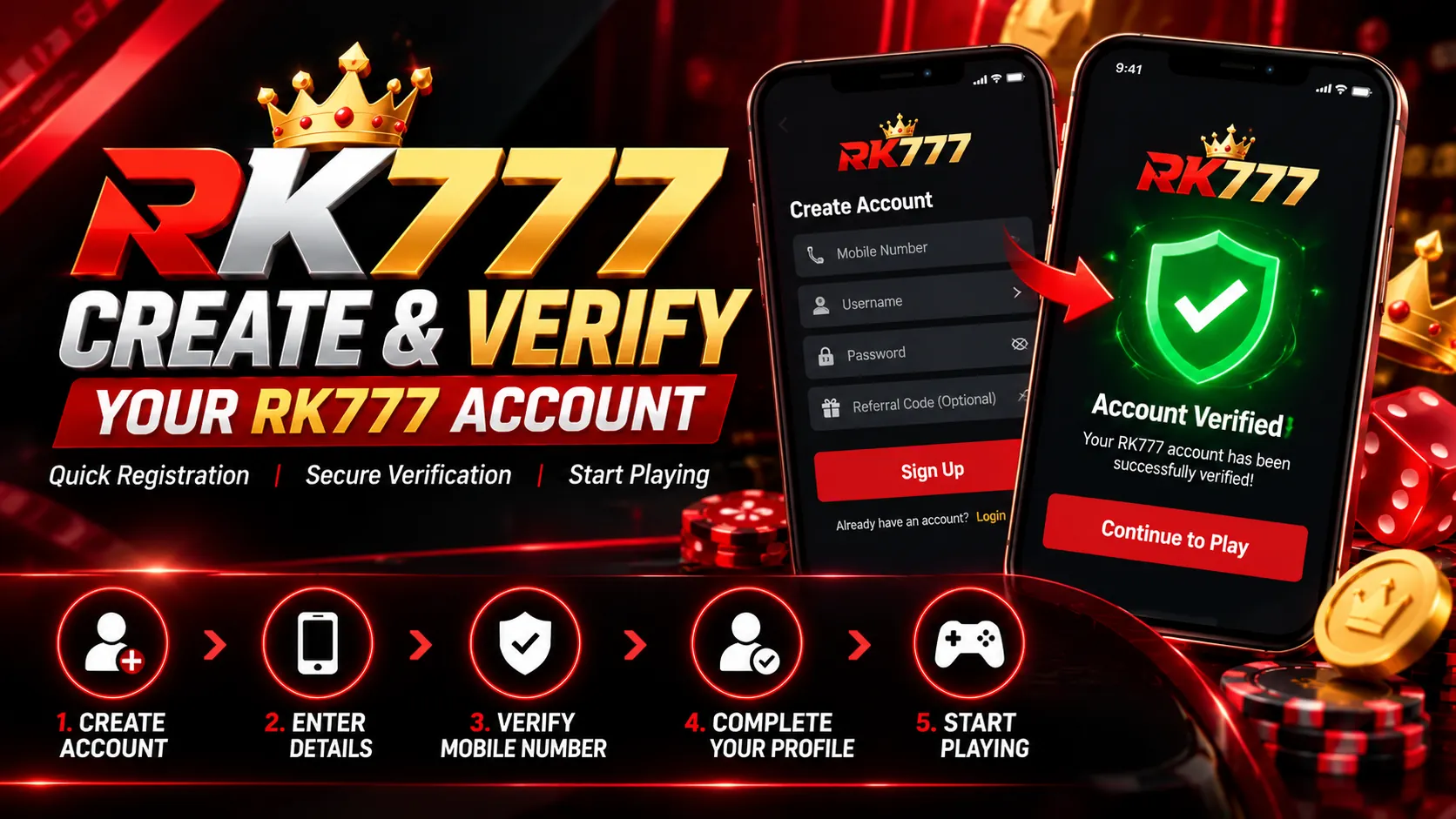
Creating an account for RK777 Game typically begins with a mobile number and verification code. This guide walks through the registration interface shown in RK777 screenshots, explains the available login options and helps you troubleshoot account-access problems.
The RK777 screen displays a +91 mobile-number field, verification-code field, Send option, Sign Up / Login button, Password Login and Forgot Password. The interface may vary by app version.
Why Create an RK777 Account?
An account lets users access the platform using the supported login methods, review available profile settings and receive account-related verification codes when required. Verifying a mobile number may help establish control of that number, but verification by itself does not guarantee total account security.
How to Create and Verify Your RK777 Account
Step 1: Open the Registration Interface
Open the intended RK777 app or registration screen from a source you trust. The interface combines sign-up and login functionality. For an overview of available registration options, read the RK777 Register Guide.
Step 2: Enter Your Mobile Number
Look for the input marked +91. Enter an active mobile number that you control. Double-check every digit before proceeding, and confirm the SIM can receive messages.
Step 3: Request a Verification Code
The login screen includes a Send button next to the verification-code field. Use the displayed instructions to request a code. Delivery time and code validity can vary; avoid repeated requests while a code is still pending.
Step 4: Enter the Received Code
Type the code carefully and proceed using the Sign Up / Login button if prompted. A code may expire, and an older code may stop working after a newer one is requested. Never share the code with anyone, including people claiming to offer support.
Step 5: Review Your Account
If sign-in succeeds, review the profile and security settings available in your version of RK777. Do not enter banking details, passwords or identity documents through unfamiliar messaging links. Additional verification, if requested by the platform, should be checked carefully before submission.
Verification Code Login vs Password Login
The screenshot shows two login choices: Verification Code Login and Password Login. Verification-code login uses a code sent to the registered number; password login is an alternative for accounts where password access has been configured. See the RK777 Login Guide for related instructions.
How to Choose a Strong Password
- Use a long, unique password rather than a familiar name or phone number.
- Prefer a password manager when possible.
- Do not reuse a password from email, banking or other apps.
- Avoid storing passwords in public notes or sharing them by message.
Tips for Smooth Mobile Verification
- Confirm the +91 country code and full mobile number.
- Keep the SIM active and check mobile-network signal.
- Use the latest code received instead of an older one.
- Check SMS filtering before trying another request.
- Keep the page open until the process completes when instructed.
What to Do If the RK777 OTP Does Not Arrive
Check the Number and Network
Confirm the digits entered and try an area with stronger network coverage. SMS delivery may be delayed when reception is poor.
Check Filtered Messages
Look in your SMS spam or blocked folder, and check whether the message was silently filtered.
Wait Before Resending
Repeated code requests can make previous codes invalid or trigger rate limits. Use the app's resend option only when offered.
Use Appropriate Support
If the problem persists, use a support channel clearly identified inside the intended application. Never provide the actual OTP or password to a support representative.
Common Registration Mistakes
- Incorrect mobile-number entry.
- Trying an expired or older verification code.
- Sharing OTPs or account recovery details.
- Using modified or untrusted APK files.
- Refreshing the registration screen during verification.
- Submitting private information on an unfamiliar website.
How to Keep Your RK777 Account Secure
Enable your phone screen lock, protect login credentials and sign out after using a shared device. Be careful with unofficial links claiming to offer rewards or account help. Visit our Trust & Safety page for broader safety information.
How to Recover Account Access
The RK777 login screenshot shows a Forgot Password option. If password login fails, select that option and follow the recovery instructions shown by the app. If you no longer control the registered number, use the available legitimate support process rather than creating replacement accounts to bypass restrictions.
Frequently Asked Questions
How can I create an RK777 account?
Use the registration screen, enter your mobile number and follow the displayed verification steps.
Does RK777 provide verification-code login?
The supplied screenshot shows a mobile-number field, verification-code input and Send button.
What if my verification code is not received?
Recheck the number, mobile-network signal and filtered SMS messages before requesting another code.
Can I use password login?
The interface shown includes a Password Login option. Availability depends on your account setup.
What if I forget my password?
Use the Forgot Password option shown on the login screen and follow the recovery process.
Should I give my OTP to support?
No. Never share a verification code or password with anyone.
Final Thoughts
RK777 account setup is easier to understand when you know the difference between mobile verification, verification-code login and password login. Carefully checking the phone number, using valid codes and protecting account information can help prevent common access issues. For related pages, see RK777 App and RK777 Download.